
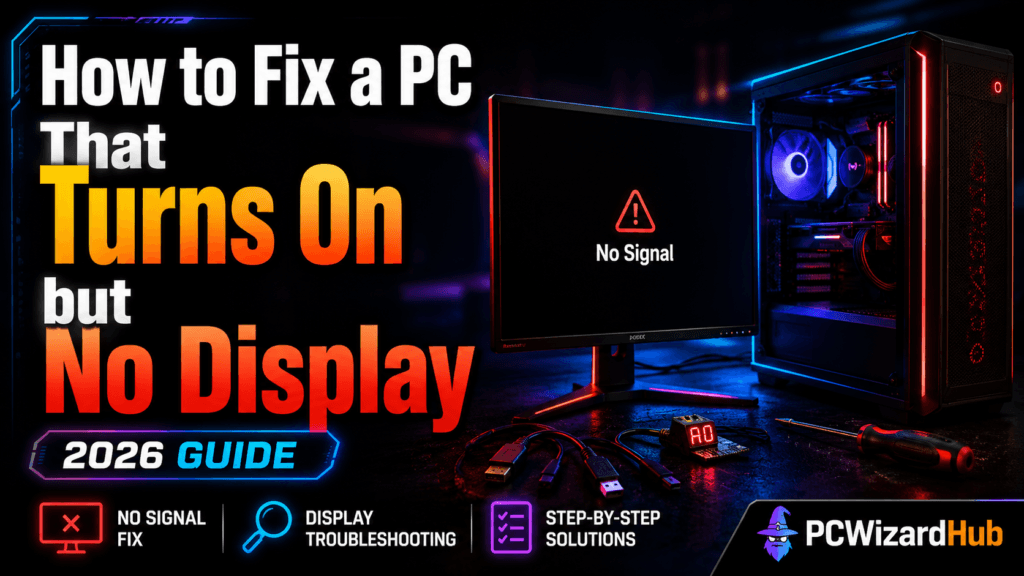
Your PC powers on, fans spin, lights glow — but there’s no image on your screen. Sound familiar? This is a frustrating but common issue. In this guide, we’ll walk through every possible cause and solution when your PC turns on but shows no display.
⚠️ What Does “Turns On” Actually Mean?
Your PC is considered “on” if:
- Power supply fan or case fans spin
- LEDs on the case or motherboard light up
- But the monitor stays blank with no BIOS or boot screen
This often points to an issue with display output, RAM, GPU, or motherboard POST.
🔧 Step-by-Step Fixes
1. Check the Monitor & Cable
- Make sure the monitor is on and plugged in
- Test with a different HDMI/DisplayPort cable
- Try another display (TV, secondary monitor)
2. Verify GPU Connection
- If using a graphics card, make sure it’s fully seated in the PCIe slot
- Check that the GPU power cables are connected
- Try plugging your monitor into the motherboard if your CPU has integrated graphics
This helps determine if the issue is with the GPU or the system.
3. Re-seat the RAM
- Turn off the PC and remove the RAM sticks
- Reinsert them carefully, one at a time
- Try different RAM slots if possible
Bad or poorly seated RAM is a top reason for no display.
4. Reset CMOS / BIOS
- Unplug your PC, remove the CMOS battery (silver coin cell) for 5–10 mins
- Or use the clear CMOS jumper if your motherboard has one
This resets display settings and potential POST issues.
👉 Grab a spare CR2032 battery on Amazon — worth having on hand since a dead CMOS battery can itself cause boot/display oddities on an older board.
5. Listen for Beep Codes
- If your motherboard has a speaker, listen for beeps on startup
- These can indicate RAM, GPU, or CPU problems (check your motherboard manual)
6. Try Booting Without GPU
- If your CPU has integrated graphics, remove the GPU and boot with monitor on motherboard port
7. Double-Check Power Connections
- 24-pin motherboard power and 8-pin CPU power cables must be secure
- Some systems may “light up” even if these are loose!
🔄 Advanced Troubleshooting
- Swap RAM or GPU with known-good parts if available
- Inspect CPU socket for bent pins (especially if recently installed)
- Try minimal boot setup: 1 RAM stick, no GPU, no drives
If reseating doesn’t help and you suspect the RAM itself is at fault, see our Best DDR4 RAM for Gaming & Budget Builds for a reliable replacement.
❓ FAQ
My motherboard beeps but I don’t know what the pattern means — what now?
Beep patterns vary by motherboard brand/BIOS vendor, so check your specific board’s manual or manufacturer site for the exact code chart — a generic “3 beeps means RAM” rule doesn’t hold across all brands.
Could this be a dead monitor instead of a PC problem?
Yes — always test with a second display or a different cable first. It’s the fastest way to rule out the cheapest possible cause before opening the case.
I tried everything and still get no display — what’s next?
At that point you’re likely looking at a failed GPU, motherboard, or CPU. Testing each component individually in a known-working system (or borrowing parts from a friend) is the most reliable way to isolate which one has actually failed.
🌟 Final Tips
- Don’t panic — this is usually fixable without replacing anything
- Always rule out monitor & cables first
- Be methodical: change one thing at a time
🔗 Related Reading
- Why Your PC Won’t Turn On: 7 Common Causes and How to Fix Them
- Tired of Crashes? Here’s How to Fix a PC That Keeps Restarting
- Best DDR4 RAM for Gaming & Budget Builds
As an Amazon Associate, PC Wizard Hub earns from qualifying purchases made through the links above.