
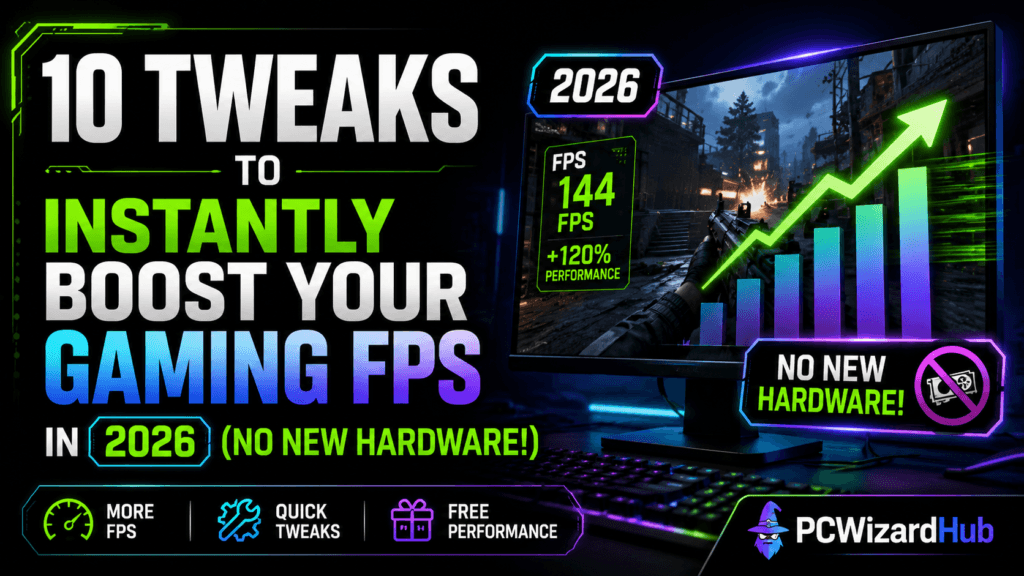
Want smoother gameplay but not ready to upgrade your rig? Good news: you can boost gaming FPS in 2026 without spending a cent. These 10 free tweaks will help your PC run games faster, smoother, and with fewer frame drops — even on aging hardware.
💡 1. Lower In-Game Settings
This is the fastest and most effective FPS booster. Prioritize changes in this order:
- Shadows: Low or Off
- Anti-Aliasing: FXAA or Off
- Render Distance: Medium
- Post-Processing: Low
Many games let you benchmark results live — use that to compare.
⚖️ 2. Use the Right Resolution
Drop your resolution from 1080p to 900p or 720p if needed. It reduces pixel load and boosts frames instantly.
Bonus: Some games support resolution scaling, so UI stays crisp.
⚙️ 3. Enable Game Mode (Windows 10/11)
- Go to Settings > Gaming > Game Mode
- Make sure it’s turned ON
This prioritizes system resources for gaming and reduces background activity.
🪤 4. Close Background Apps
Check your taskbar and Task Manager for things like:
- Chrome tabs
- Discord overlays
- Steam downloads
- Windows Updates
Fewer running apps = more CPU & RAM for gaming.
🚀 5. Update Your Graphics Drivers
Outdated GPU drivers can hurt performance big time. Go to:
- NVIDIA GeForce Experience
- AMD Radeon Software
Always keep drivers updated, especially after major game launches.
⚒️ 6. Set GPU to Performance Mode
In your GPU control panel:
- Set Power Management Mode to Maximum Performance
- Set Texture Filtering to Performance
This ensures your GPU isn’t throttling to save power.
🏋️♂️ 7. Adjust Windows Power Plan
Go to Control Panel > Power Options and set to:
- High Performance, or
- Ultimate Performance (available on some systems)
Prevents CPU throttling and lets your PC work at full speed.
🛠️ 8. Turn Off Xbox Game Bar & Overlays
- Go to Settings > Gaming > Xbox Game Bar
- Toggle OFF
Also disable overlays in Discord, Steam, etc. They can eat frames quietly.
🧹 9. Clean Up Your Startup Apps
Use Task Manager > Startup Tab to disable apps you don’t need launching with Windows.
Less junk at boot = more available memory for gaming.
🌌 10. Enable Hardware-Accelerated GPU Scheduling
Only available on newer GPUs + Windows 10/11:
- Go to Settings > System > Display > Graphics > Change default graphics settings
- Enable Hardware-accelerated GPU scheduling
Often adds +5–15% FPS depending on game and system.
🔄 Bonus Tip: Reboot Before You Game
A quick reboot clears out RAM-hogging background stuff and gives your system a clean slate.
❓ FAQ
I’ve done all 10 and FPS still isn’t great — now what?
At that point you’re likely hitting a hardware ceiling rather than a software one. See our budget build and upgrade guides below for the next step.
Will lowering settings hurt my game’s visuals that much?
Shadows and post-processing tend to cost the most FPS for the least visible difference — they’re the best place to cut first, well before resolution or texture quality.
Does Hardware-Accelerated GPU Scheduling work on older GPUs?
No — it requires a relatively recent GPU and driver plus Windows 10 (2004+) or 11. Check your GPU control panel; if the option isn’t there, your hardware doesn’t support it.
🌟 Final Thoughts
You don’t always need a hardware upgrade to improve gaming performance. These tweaks are fast, safe, and totally free — perfect for budget builds or older machines.
Still not hitting the frame rates you want? These related guides cover the next step:
- 7 Genius Ways to Boost Gaming Performance for Free in 2026
- Unlock Hidden Power: How to Safely Overclock Your CPU & GPU
- 7 Easy Fixes for Noisy Fans and Hardware