
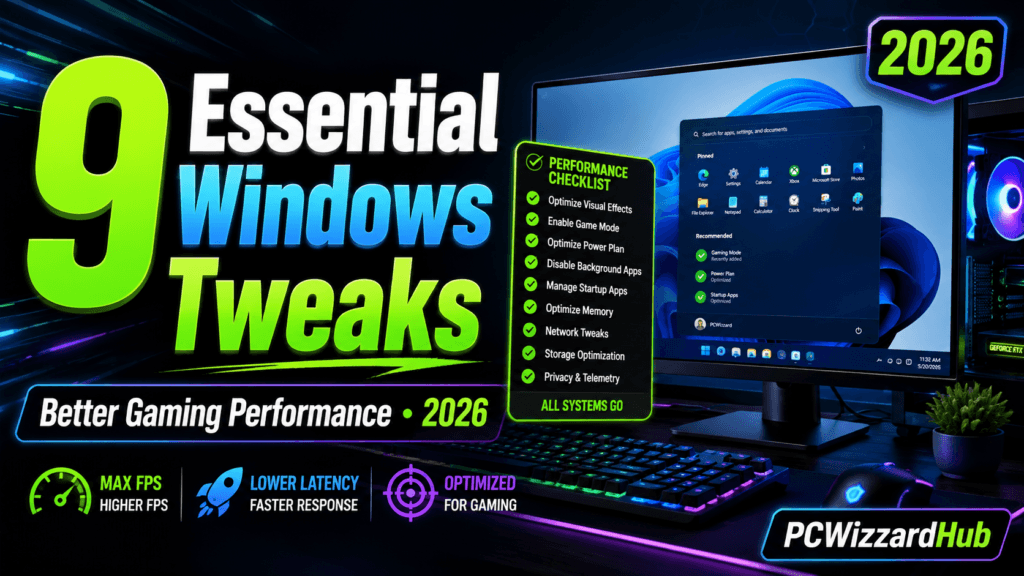
Looking to get more FPS and smoother gameplay without spending a cent? These 9 easy Windows tweaks will help you boost gaming performance on your existing hardware.
No overclocking or advanced knowledge needed. Let’s dive in!
🕹️ 1. Enable Game Mode
Why:
Prioritizes system resources for gaming.
- Go to Settings > Gaming > Game Mode
- Turn Game Mode ON
This helps Windows focus resources on your game instead of background tasks.
🚫 2. Disable Background Apps
Why:
Frees up RAM and CPU usage.
- Go to Settings > Apps > Installed apps
- Uninstall or disable apps running in the background unnecessarily
You can also use Task Manager to stop apps launching at startup.
🎨 3. Adjust for Best Performance (Visual Effects)
Why:
Fancy animations = less performance.
- Right-click This PC > Properties > Advanced System Settings
- Under Performance, choose Adjust for best performance
You can keep some effects like smooth fonts for comfort.
⚡ 4. Set High Performance Power Plan
Why:
Prevents Windows from throttling performance.
- Go to Settings > System > Power & Battery > Power Mode
- Set to Best Performance
On desktops, use Control Panel > Power Options to set a custom plan.
🔄 5. Update Graphics Drivers
Why:
New drivers = better performance & fixes.
- Use NVIDIA GeForce Experience or AMD Adrenalin
- Check for updates before big game launches
Outdated drivers are one of the top causes of stuttering and poor FPS.
🎮 6. Disable Xbox Game Bar & DVR
Why:
Reduces background recording and overlays.
- Go to Settings > Gaming > Xbox Game Bar
- Turn it OFF
- Also disable background recording in Captures
This frees up system resources and avoids input lag.
🧹 7. Clear Temp Files & Use Storage Sense
Why:
Keeps your system snappy and free of junk.
- Press Windows + R, type %temp%, delete everything
- Enable Storage Sense in Settings to automate cleanup
More free space = faster load times.
🚀 8. Optimize Startup Apps
Why:
Faster boot = less background clutter.
- Open Task Manager > Startup tab
- Disable any apps you don’t need launching every time
Helps get into your game quicker without RAM hogs.
🔄 9. Keep Windows Updated
Why:
Security patches, bug fixes, performance improvements.
- Go to Settings > Windows Update
- Check regularly or enable auto-updates
Some updates even include DirectX or gaming-specific improvements.
🧠 Final Thoughts
Optimizing Windows is a great way to boost performance before considering any hardware upgrades. These 9 tweaks can improve responsiveness, loading times, and in-game FPS.
Want even more FPS? Check out our Best Budget GPUs in 2026 or
How to Upgrade an Old PC for deeper performance gains.