
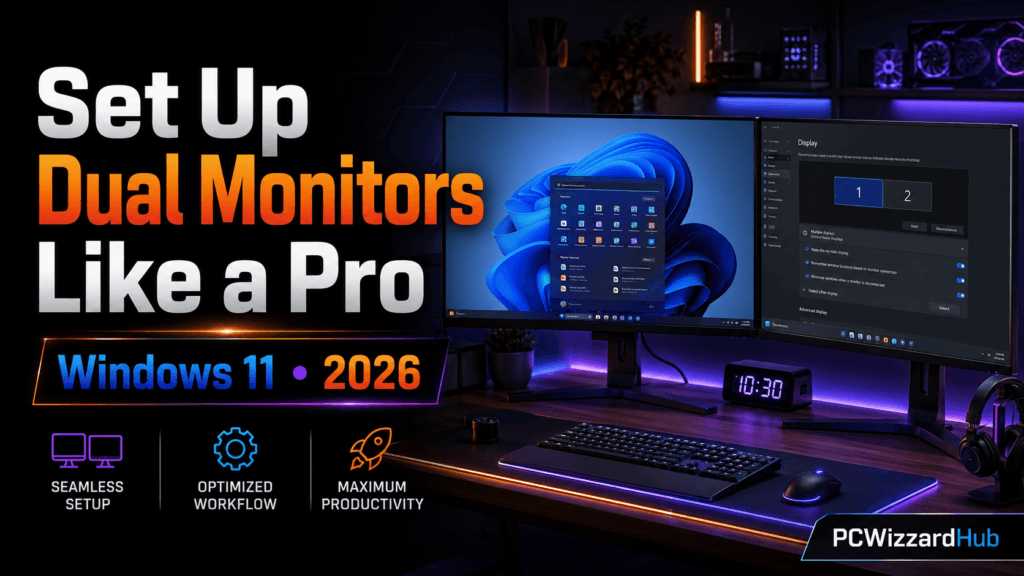
Running dual monitors is a game-changer for productivity, gaming, streaming, or just general multitasking. Windows 11 makes setting up two (or more) screens easier than ever. Whether you’re connecting via HDMI, DisplayPort, or USB-C, this guide will show you how to set up dual monitors like a pro in 2026.
🧩 1. Check Your Ports and Cables
First, make sure your PC or laptop supports two displays. Common ports include:
- HDMI
- DisplayPort
- USB-C with DisplayPort support
- Thunderbolt
Ensure you have the right cables and adapters, especially if your monitors and GPU use different standards.
🖥️ 2. Connect Your Monitors
Plug both monitors into your PC. Windows 11 should automatically detect and extend your display. If it doesn’t:
- Right-click on the desktop > Select Display settings
- Scroll to Multiple displays and click Detect
⚙️ 3. Configure Display Settings
Under Settings > System > Display, you’ll see both monitors represented as rectangles. Here’s how to set them up:
- Drag to reposition based on physical layout
- Select Identify to know which is which
- Set one as Main Display (where taskbar and start menu appear)
🔁 4. Choose Display Mode
In the Multiple displays dropdown, choose one of these modes:
- Extend: Treats each monitor as separate workspace (ideal for multitasking)
- Duplicate: Shows same screen on both (good for presentations)
- Second screen only: Useful when using a laptop with an external display only
🎮 5. Optimize for Gaming or Streaming
For gaming:
- Use your high-refresh rate monitor as primary
- Disable overlays or pop-ups on secondary display
For streaming:
- Keep OBS, chat, or browser on your second monitor
- Use Windowed Borderless mode for easier navigation
👉 Bonus Tip: How to Optimize Windows 11 for Gaming – Full Settings Guide
🔧 6. Get the Right Mount for Your Setup
Two monitors sitting flat on a desk eat up space fast and make it hard to align them properly. A dual monitor arm frees up desk space and makes it much easier to get both screens at matching height and angle.
Recommended: HUANUO Dual Monitor Mount
Height-adjustable with tilt, swivel, and rotation on each arm — fits most 13″–32″ monitors and supports up to 22 lbs per side.
👉 Check the HUANUO Dual Monitor Mount on Amazon
❓ FAQ
Can I use two different monitors with different sizes or resolutions?
Yes — Windows 11 handles mismatched monitors fine in Extend mode. Just expect some visual inconsistency in text/icon size unless you adjust the scaling percentage separately for each display in Display settings.
Why does my second monitor keep disconnecting?
Usually a cable, port, or driver issue. Try a different cable or port first, then update your GPU drivers — this is the single most common fix for intermittent multi-monitor disconnects.
Do I need a powerful GPU to run dual monitors?
No — driving two displays for productivity work uses minimal GPU resources. It only becomes a real factor if you’re gaming across multiple high-refresh-rate displays simultaneously.
🧠 Final Tips
- Update GPU drivers regularly
- Use the same resolution and scaling for visual consistency
- Consider a monitor arm or stand for ergonomic positioning
Ready to build your dream battlestation? Keep browsing PCWizardHub.com for guides, parts, and inspiration!
🔗 Related Reading
- How to Choose the Right PC Parts for Your First Build
- PC Building 101: How to Build a PC as a Beginner
- 9 Essential Windows Tweaks for Better Gaming Performance
As an Amazon Associate, PC Wizard Hub earns from qualifying purchases made through the links above.
⚠️ Fixes Needed on the Live Post (Not Just Content)
- Year never appears anywhere: meta title, H1, and body never mention 2026 — the only year reference is a stale “2025” buried in the intro. Added “(2026)” to the L.